Getting Started with Linux for Beginners
Linux has become an essential operating system in the world of technology, powering everything from smartphones to supercomputers. Whether you’re interested in cybersecurity, software development, or system administration, learning Linux opens doors to countless opportunities. This comprehensive guide will walk you through everything you need to know to begin your Linux journey with confidence.
Table of Contents
- What Is Linux?
- Why Learn Linux?
- Choosing Your First Linux Distribution
- Installation Methods
- Essential Linux Commands
- Understanding the Linux File System
- Learning Resources and Next Steps
What Is Linux?
Linux is an open-source operating system kernel originally created by Linus Torvalds in 1991. Unlike proprietary systems like Windows or macOS, Linux is free to use, modify, and distribute. The operating system consists of the Linux kernel combined with various software packages to create complete distributions.
The beauty of Linux lies in its flexibility and transparency. You can examine every line of code, customize your system extensively, and choose from hundreds of distributions tailored to different needs. This openness has made Linux the foundation of modern technology infrastructure, including web servers, cloud platforms, and embedded systems.
The Philosophy Behind Linux
Linux embraces the Unix philosophy of creating small, modular tools that do one thing well. This approach encourages efficiency, simplicity, and the ability to combine tools in powerful ways. Understanding this philosophy helps you grasp why Linux operates differently from other operating systems.
Why Learn Linux?
Learning Linux provides numerous professional and personal advantages. The vast majority of web servers run Linux, making it essential knowledge for anyone working in web development, DevOps, or cloud computing. Cybersecurity professionals rely on Linux tools for penetration testing, network analysis, and security auditing.
The job market consistently shows strong demand for Linux skills. System administrators, cloud engineers, and DevOps specialists with Linux expertise command competitive salaries. Additionally, understanding Linux deepens your overall computer literacy and problem-solving abilities.
Linux also offers practical benefits for everyday computing. It runs efficiently on older hardware, provides superior privacy controls, and remains largely immune to the malware that plagues other operating systems. The active community support means you can find solutions to virtually any problem.
Choosing Your First Linux Distribution
A Linux distribution combines the Linux kernel with software packages, desktop environments, and package managers. Selecting the right distribution for your first experience is crucial for building confidence and enthusiasm.
Ubuntu
Ubuntu stands as the most popular choice for beginners, and for good reason. It offers an intuitive interface, extensive documentation, and massive community support. Ubuntu works well out of the box with most hardware and provides a familiar desktop experience for users transitioning from Windows or macOS. The distribution releases new versions every six months, with long-term support versions maintained for five years.
Linux Mint
Linux Mint builds upon Ubuntu while providing an even more traditional desktop experience. Its Cinnamon desktop environment closely resembles Windows, making the transition smoother for new users. Mint emphasizes simplicity and includes many codecs and drivers pre-installed, reducing initial setup complexity.
Fedora
Fedora offers cutting-edge features while maintaining stability. It serves as the testing ground for Red Hat Enterprise Linux, meaning you gain exposure to technologies used in enterprise environments. Fedora suits beginners who want to stay current with the latest Linux developments.
Installation Methods
You don’t need to commit fully to Linux immediately. Several methods let you explore Linux while keeping your current operating system intact.
Virtual Machines
Virtual machine software like VirtualBox or VMware allows you to run Linux inside your current operating system. This method provides a safe sandbox for experimentation without risking your primary system. You can take snapshots, test configurations, and start fresh if something goes wrong. Platforms like DataCamp often use virtual environments for their Linux courses, giving you hands-on practice in controlled settings.
Live USB
A live USB lets you boot Linux directly from a USB drive without installing anything on your hard drive. This approach gives you full access to Linux features while leaving your system completely unchanged. You can test hardware compatibility and explore the distribution before committing to installation.
Dual Boot
Dual booting installs Linux alongside your existing operating system, allowing you to choose which one to use at startup. This method provides the best performance since Linux runs directly on your hardware, but it requires partitioning your hard drive and involves slightly more technical setup.
Essential Linux Commands
The command line interface represents one of Linux’s most powerful features. While modern Linux distributions provide graphical interfaces for most tasks, mastering basic commands unlocks the system’s full potential.
Navigation Commands
The pwd command displays your current directory location. Use ls to list files and directories, with options like ls -la providing detailed information including hidden files. The cd command changes directories, where cd .. moves up one level and cd ~ returns you to your home directory.
File Management
Create directories with mkdir directory_name and files with touch filename. Copy files using cp source destination and move or rename them with mv source destination. Remove files with rm filename and directories with rm -r directory_name, though exercise caution as deletion is permanent.
System Information
Check system information with uname -a for kernel details and df -h for disk space usage. The top command displays running processes and resource usage, while free -h shows memory statistics. Use whoami to confirm your current user and hostname to display your system name.
Package Management
Different distributions use different package managers. Ubuntu and Debian-based systems use apt, where sudo apt update refreshes package lists and sudo apt install package_name installs software. Fedora uses dnf with similar syntax. Always update your system regularly with sudo apt upgrade to maintain security and stability.
Understanding the Linux File System
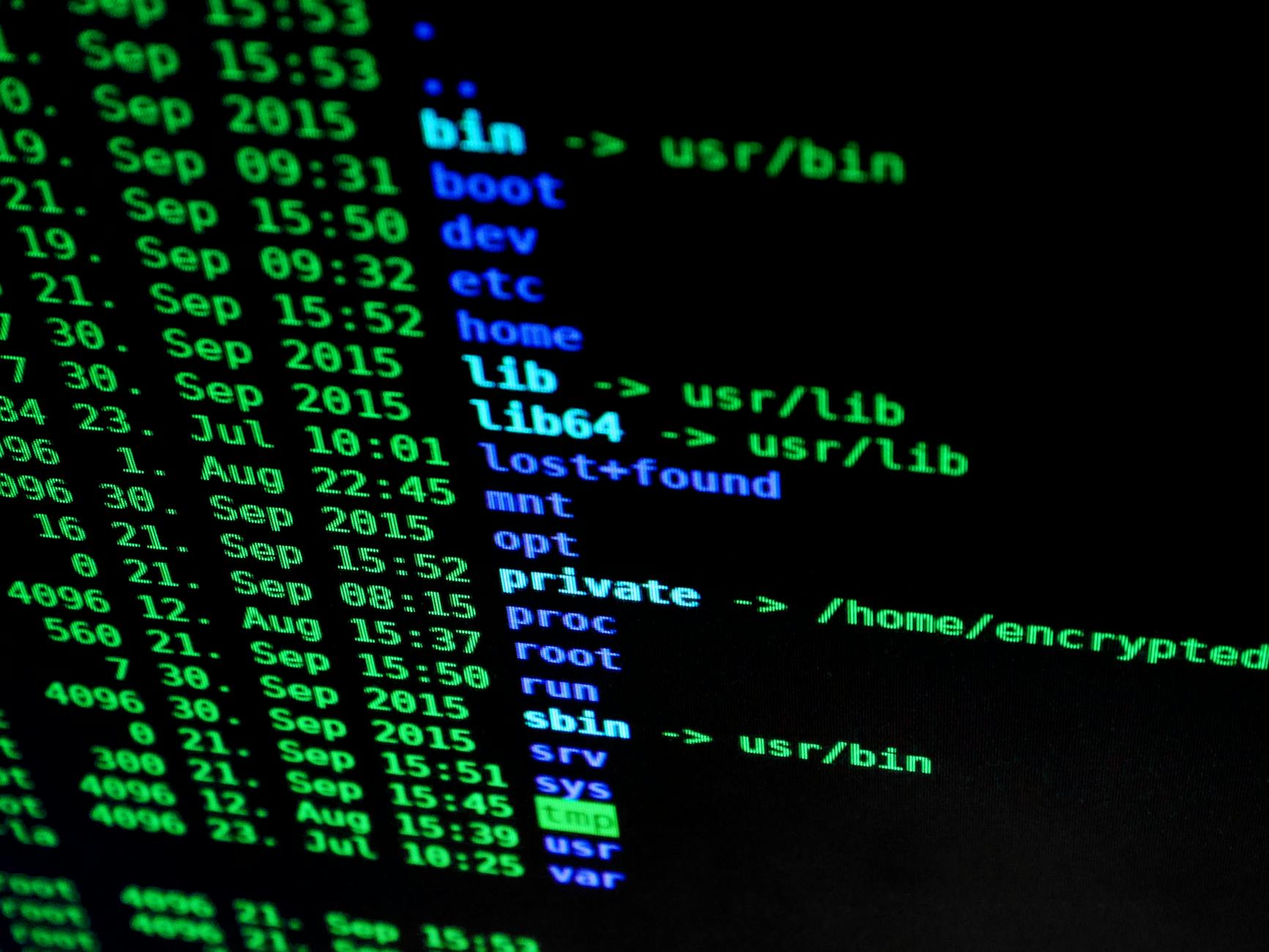
Linux organizes files hierarchically starting from the root directory denoted by a forward slash. Everything in Linux is treated as a file, including hardware devices and system processes.
The /home directory contains user files and personal data. System configuration files reside in /etc, while executable programs live in /bin and /usr/bin. Temporary files go in /tmp, and device files exist in /dev. Log files accumulate in /var/log, essential for troubleshooting system issues.
Understanding file permissions is crucial for system security. Each file has read, write, and execute permissions for the owner, group, and others. Use chmod to modify permissions and chown to change ownership. This granular control prevents unauthorized access and maintains system integrity.
Learning Resources and Next Steps
Continuous learning accelerates your Linux proficiency. Official documentation for your chosen distribution provides authoritative information, while community forums offer practical solutions to common problems. The Linux community values helping newcomers, so don’t hesitate to ask questions.
Structured courses provide organized learning paths. Coursera offers comprehensive Linux courses from universities and industry experts, covering everything from basic commands to system administration. These courses often include hands-on labs and projects that reinforce learning through practice.
Practice remains the most effective learning method. Set up a home lab using virtual machines or spare hardware. Install different distributions, break things intentionally, and learn to fix them. Configure services like web servers, file servers, or media centers. Each project builds practical skills applicable to real-world scenarios.
Join Linux user groups in your area or participate in online communities. Engage with the Linux subreddit, Linux forums, or distribution-specific discussion boards. Contributing to open-source projects, even through documentation or bug reports, deepens your understanding while giving back to the community.
Setting Goals
Establish clear learning objectives to maintain motivation. Start with using Linux as your daily operating system for basic tasks. Progress to administering your own server, automating tasks with shell scripts, or specializing in areas like security or networking. Professional certifications like CompTIA Linux+ or Red Hat Certified System Administrator validate your skills to employers.
Common Beginner Mistakes to Avoid
New users often get discouraged by trying to learn everything simultaneously. Focus on mastering fundamentals before exploring advanced topics. Don’t fear the command line—embrace it as a powerful tool rather than an obstacle. Make regular backups when experimenting, and read error messages carefully rather than panicking when something goes wrong.
Remember that every Linux expert started as a beginner. The learning curve might seem steep initially, but consistent practice transforms confusion into competence. Linux rewards curiosity and experimentation, so explore fearlessly in safe environments and enjoy the journey of discovery.
Follow Networkyy
Join 125,000+ IT professionals: